PW Merchant APIPW Merchant APIWooCommerce Google Merchant Center Integration
Başlayın

PW Merchant Check installation and first site audit

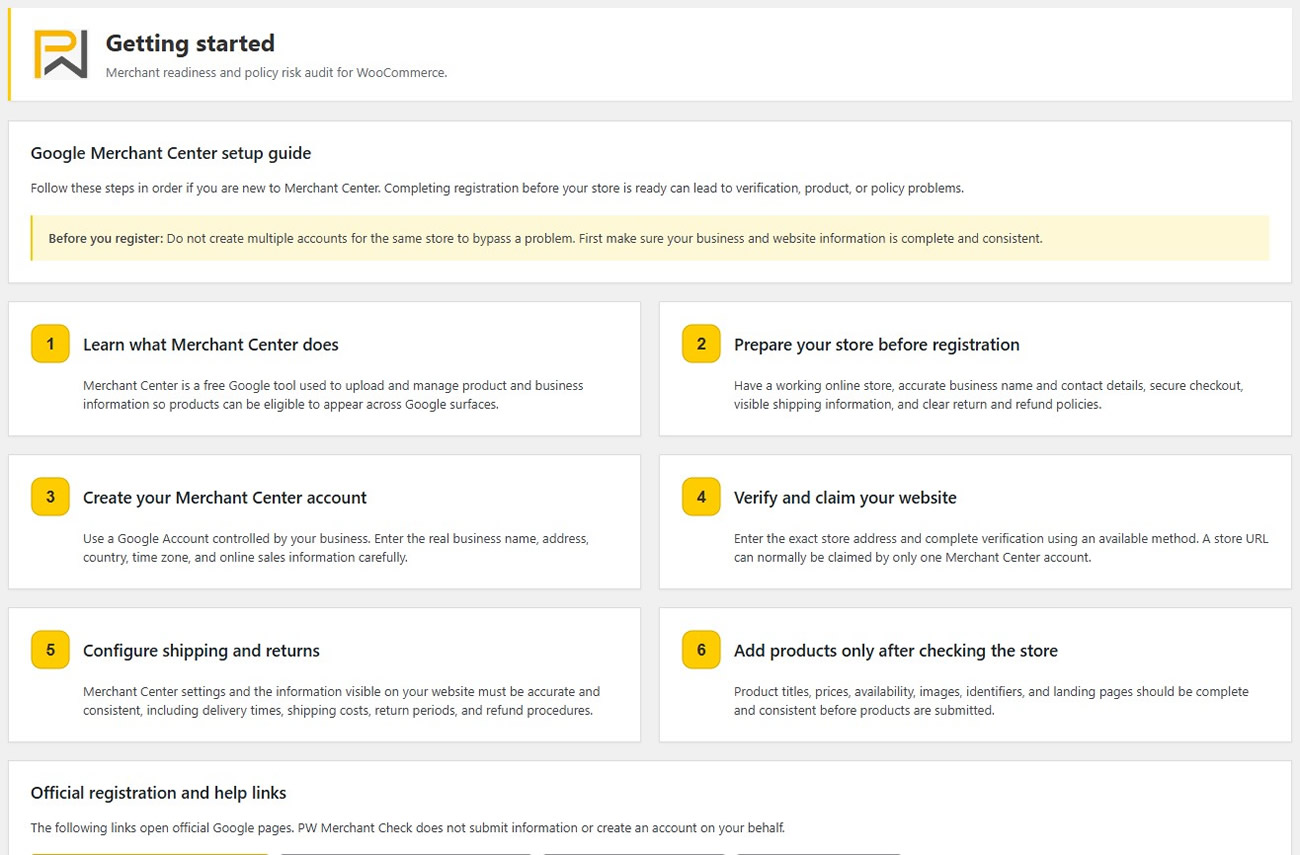
PW Merchant Check installation and first site auditPreparing a WooCommerce store for Google Merchant Center begins before products are submitted. A merchant should first understand whether the website is accessible, whether business information is visible, whether essential policy topics are covered and whether product records contain the basic data customers and shopping platforms expect. PW Merchant Check brings these preparation checks into a single WordPress administration area.

This guide explains how to install PW Merchant Check, complete the first local site audit, scan WooCommerce products, review common misrepresentation risk signals and create a readable report. It is written for store owners, agencies and administrators who want a practical starting point without configuring Google OAuth or connecting a Merchant Center account.

PW Merchant Check is a free, read-only preparation and audit plugin developed independently by Poyraz Web. It does not submit products to Google, synchronize a catalogue, read Merchant Center account diagnostics or guarantee approval. Its purpose is to help you find local website and product-data weaknesses before you apply, request another review or begin a more advanced Merchant API workflow.

What you need before installation

PW Merchant Check requires WordPress 6.2 or later and PHP 7.4 or later. WooCommerce should be installed and active when you want to use the product audit and WooCommerce-specific checks. Administrator access is also required because the plugin reviews store configuration and displays results inside the protected WordPress dashboard.

Before installing any WordPress plugin, create a current backup of the site and database. Also confirm that WordPress, WooCommerce and the active theme function normally. PW Merchant Check performs read-only audits, but a backup remains a sensible standard precaution whenever software on an e-commerce site changes.

Installing PW Merchant Check from a ZIP file

  1. Sign in to the WordPress administration dashboard with an administrator account.
  2. Open Plugins > Add New Plugin.
  3. Select Upload Plugin.
  4. Choose the official PW Merchant Check ZIP package from your computer.
  5. Select Install Now and wait for WordPress to complete the installation.
  6. Select Activate Plugin.
  7. Open PW Merchant Check from the main administration menu.

Suggested screenshot: WordPress Add Plugins page with the Upload Plugin button and the PW Merchant Check ZIP selected.

Installing the plugin with FTP or a hosting file manager

If the WordPress uploader is unavailable, extract the ZIP on your computer and upload the complete pw-merchant-check folder to /wp-content/plugins/. The main plugin file must sit directly inside that folder rather than inside a second nested folder. Then open Plugins > Installed Plugins in WordPress and activate PW Merchant Check.

A common mistake is producing a nested path such as /wp-content/plugins/pw-merchant-check/pw-merchant-check/. If WordPress cannot see the plugin, check the folder structure and confirm that all files transferred.

What appears after activation

PW Merchant Check adds its own top-level administration menu. The available areas include an overview, Site audit, Product audit, Misrepresentation, Reports and Settings. The interface follows the language selected for the WordPress administration area. English is the source language and Turkish translations are included; the plugin does not add a separate language selector.

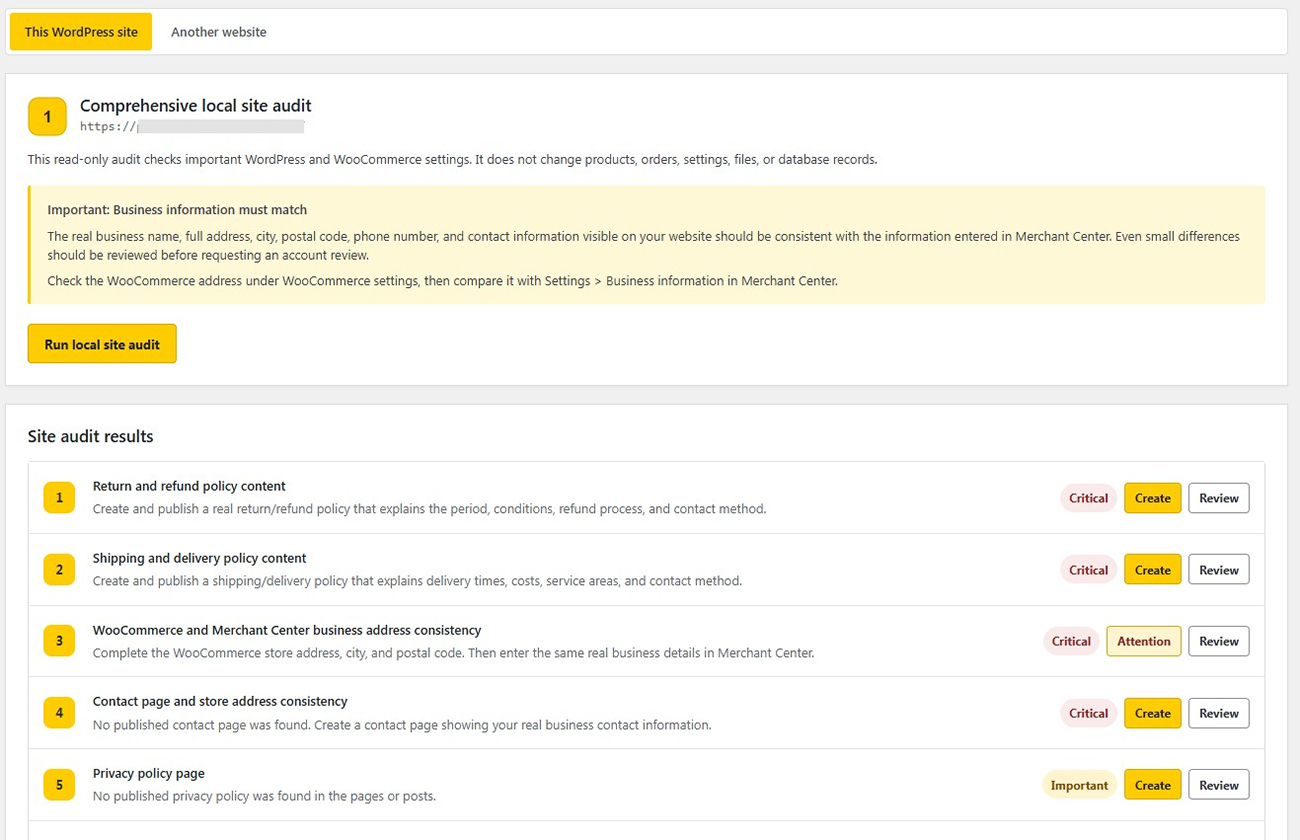
The overview offers two audit choices. The comprehensive audit examines the WordPress and WooCommerce store on which the plugin is installed. A separate general website audit can inspect the public homepage of another website in a limited and protected way. For your first complete review, choose the comprehensive local audit.

Suggested screenshot: PW Merchant Check overview showing the comprehensive audit and general website audit choices.

Why the first audit should be local

The local site audit can read relevant WordPress and WooCommerce settings that are not visible from a public homepage. It can therefore provide a more useful preparation review for the current store. The external option only reads public homepage HTML; it does not sign in, submit forms, create an account, add products to a cart or enter private website areas.

Running the first local site audit

  1. Open PW Merchant Check > Site audit.
  2. Select the comprehensive local site audit if an audit-type choice is displayed.
  3. Read the notice explaining that the process is read-only.
  4. Select Run local site audit.
  5. Wait for the results to appear on the same page.

The site audit checks important readiness signals associated with WordPress, WooCommerce, accessibility, business transparency and store information. It does not edit the detected issue automatically. This is intentional: a tool cannot safely decide the correct legal name, business address, policy wording, delivery promise or return condition for every merchant.

Suggested screenshot: Comprehensive local site audit card before the Run local site audit button is selected.

Understanding result priorities

Results are organised so that you can start with the most consequential findings. A critical result indicates an issue that may prevent a trustworthy or functional store experience and deserves immediate review. An important result identifies a material weakness that should be corrected. A suggestion represents an improvement or a signal that may require human confirmation. Passed results show checks for which the plugin found the expected local signal.

Do not treat every automated finding as a final verdict. Page builders, scripts, images containing text, translations and unusual templates can prevent detection. Inspect the relevant public page on desktop and mobile and confirm the customer experience manually.

Reviewing the business address warning

One of the most important manual steps is comparing the WooCommerce store address with the business information shown on the website and in Merchant Center. Open the WooCommerce general settings and review the street address, city, postcode and country. Then compare them with the contact page, footer, policy pages and Merchant Center business information.

Use a consistent presentation wherever the same legal or operational address is intended. Harmless formatting differences can occur, but conflicting cities, obsolete addresses, missing postcodes or unrelated company names weaken trust. If a registered office, warehouse and return address are genuinely different, label each purpose clearly rather than forcing them into one ambiguous address.

Checking policy and customer-information pages

Review every result concerning privacy, terms, returns and refunds, shipping and delivery, contact information and business identity. The existence of a page title alone does not prove that the content is complete. Each page should be publicly accessible, readable on mobile devices and relevant to the products, countries and fulfilment methods actually offered by the store.

A return policy should explain important customer-facing conditions in plain language. Shipping information should set realistic expectations about destinations, charges and delivery timing. Contact information should give customers a practical way to reach the merchant. Avoid placeholder text, copied company names, unfinished templates and contradictions between checkout information and policy pages.

PW Merchant Check does not write legal documents and does not provide legal advice. Its policy-topic checks are preparation guidance. Merchants remain responsible for obtaining appropriate legal advice and complying with the laws that apply to their business, products and target markets.

What to do after the site audit

Work through critical results first, followed by important items and suggestions. After publishing corrections, clear relevant caches and test the homepage, product page, cart, checkout, contact and policy pages. Then run the local audit again.

Starting the WooCommerce product audit

Open PW Merchant Check > Product audit and select Start product audit. Products are read in controlled groups of 100. The page displays progress values such as scanned, remaining, total and percentage. Keep the Product audit page open until the scan finishes because automatic continuation runs only while that page remains open.

The audit is read-only. It does not change titles, descriptions, prices, stock, images, categories, identifiers or variations. Depending on the catalogue, it can surface weaknesses involving product titles, descriptions, price, image, SKU, global identifiers, brand signals, category assignment, variable products and purchasability.

Suggested screenshot: Product audit page showing scanned, remaining, total and percentage progress.

Why products are scanned in groups of 100

Large catalogues can place sudden pressure on hosting resources when every product is loaded in one request. PW Merchant Check uses batches of 100 products with a controlled pause between batches. This design makes the process more suitable for ordinary WooCommerce hosting and provides visible progress instead of one long, opaque request.

Completion time depends on catalogue size, server performance and scanning speed. Do not refresh or close the page unnecessarily. If automatic continuation fails, use the manual continuation path; the audit does not write to product records.

Choosing the product scanning speed

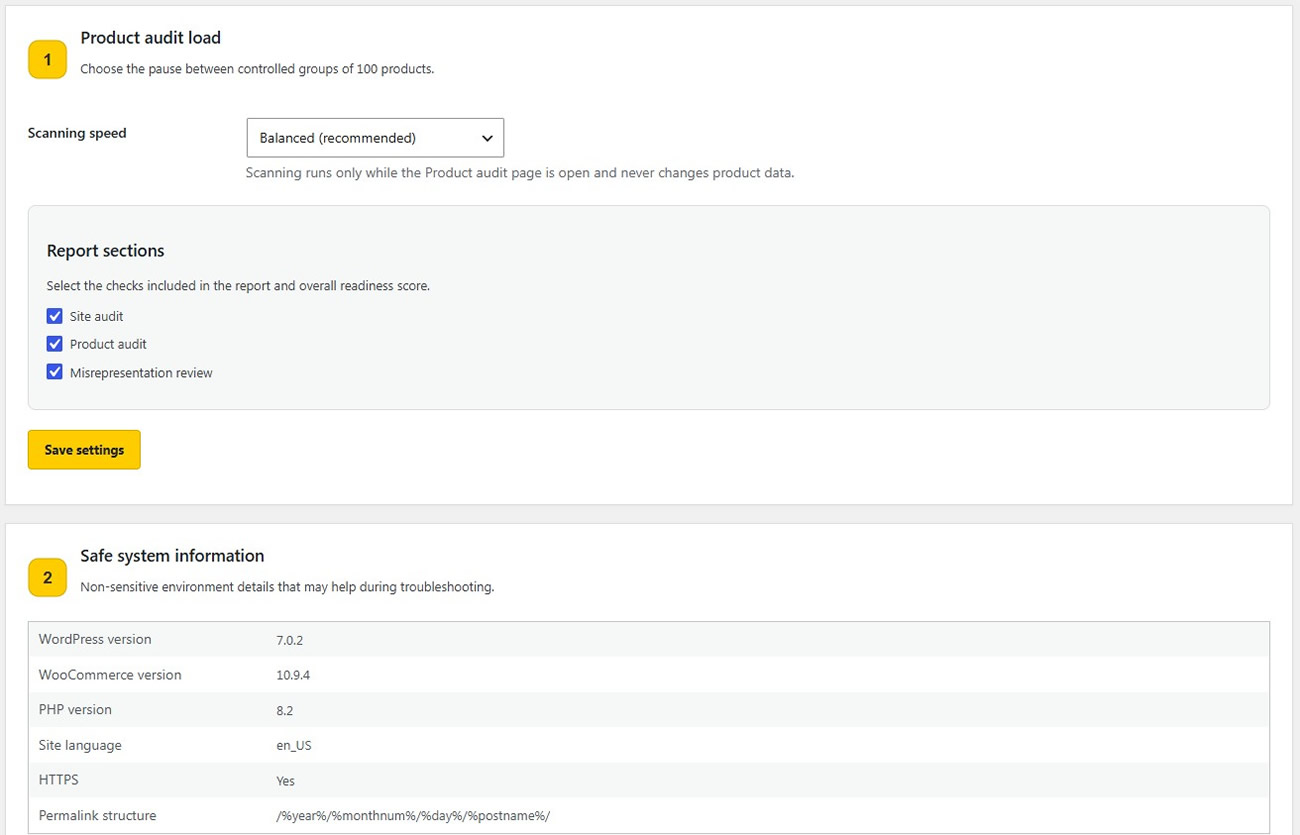
Open PW Merchant Check > Settings to choose Low load, Balanced or Faster. Balanced is the recommended default for most stores. Low load introduces a longer pause between groups and may suit resource-limited shared hosting. Faster shortens the pause but should be used only when the server is stable and the administration area remains responsive.

Interpreting product findings

Start with products that cannot be purchased or do not have a valid price, then review missing images and incomplete essential information. Check whether a product is intentionally unavailable or simply misconfigured. A catalogue may contain drafts, private products or discontinued items that should not be part of a Merchant workflow; context matters.

Never invent a GTIN, EAN or another identifier merely to remove a warning. Use an identifier assigned by the manufacturer when one exists. For products without an assigned global identifier, describe the product truthfully and follow the applicable product-data rules. Review variations individually because colour, size, stock and price can differ between child products.

After corrections, run a new product audit rather than assuming that an edited record is now complete. Rechecking is especially important after bulk imports, currency updates, stock integrations, catalogue migrations or theme changes that affect purchasability.

Completing the misrepresentation preparation review

Open PW Merchant Check > Misrepresentation. This area combines automatically detected website signals with merchant declarations. Answer the transparency questions accurately based on the current public store, not on work that is planned but has not yet been published.

The questions help you think through business identity, contact availability, policy visibility, payment and fulfilment expectations and related trust signals. Save the answers and review both automatically detected risks and merchant declaration results. If an answer exposes a weakness, correct the public website and update the declaration only after the correction is live.

The displayed misrepresentation readiness score is an experience-based local preparation indicator. It is not a Google score, an approval decision or a promise that a suspension will be removed. Google evaluates websites, accounts, products and other signals using its own processes.

Suggested screenshot: Misrepresentation review showing the readiness score, automatic checks and merchant declarations.

Creating the combined report

Complete the site audit, product audit and misrepresentation review before relying on the combined report. Then open PW Merchant Check > Reports. The report uses the latest available result from each included area. A missing or expired audit is not included in the overall score, so an incomplete report should not be mistaken for a full store assessment.

The report shows site, product, misrepresentation and overall readiness values, along with available detail and recent score history. Use Print report for a print-friendly version or Download HTML report to save a portable HTML file. The downloaded report can be opened in a modern browser and shared internally with the person responsible for store corrections.

Treat reports as internal operational material unless sharing is appropriate. They are not official Google documents or proof of Merchant Center eligibility.

Suggested screenshot: Reports page with Print report and Download HTML report buttons.

Selecting sections included in reports

In Settings, you can include or exclude Site audit, Product audit and Misrepresentation review from the report and overall readiness score. For the first full assessment, keep all three sections enabled. A store without a completed section should show that absence clearly rather than using a partial score as if it represented the whole site.

After changing report settings, save them and reopen Reports. A score based on three sections is not directly comparable with one based on a single section.

Privacy and saved audit data

PW Merchant Check stores audit summaries in the site’s own WordPress database. It does not connect to Merchant Center, send audit results to Poyraz Web or PW Feed, or transmit them for remote scoring. It also does not display passwords, API keys, customer data, orders, database credentials or sensitive file paths in its system-information area.

Settings provides a confirmed deletion option for saved site, product and misrepresentation audit results and score history. Use it only when you intentionally want to remove that local audit information. Deleting saved results does not delete WooCommerce products or orders, but the removed audit history will no longer be available for comparison.

Safe system information for troubleshooting

The Settings page displays limited non-sensitive information such as WordPress version, WooCommerce version, PHP version, site language, HTTPS status and permalink structure. These details can help identify a compatibility or configuration issue without exposing secrets. When requesting support, you can provide these basic values together with the exact error text and the step that produced it.

Do not share administrator passwords, hosting passwords, database credentials, private API keys or customer records in a forum or support message. A legitimate initial troubleshooting request should not require those secrets.

Common installation problems

If WordPress reports that the package could not be installed, confirm that you uploaded a valid ZIP and that it contains the plugin files. If the destination folder already exists, deactivate the previous copy and use WordPress’s normal update method, or replace the correct folder carefully through your hosting tools. Keep a backup before any manual replacement.

If activation fails, check PHP and WordPress versions, the administrator error and the server PHP log. WooCommerce must be active for product scanning.

Common audit problems

If the product audit stops, keep the page open and use the available manual continuation control. Choose Balanced or Low load, check for expired login sessions and retry when the server is not processing backups or imports. If a security plugin blocks WordPress administration AJAX requests, review its event log and allow the legitimate local request without weakening unrelated protections.

If a policy page is reported missing even though it exists, inspect whether the content is publicly visible as real text. Text embedded only in an image, loaded after interaction, hidden behind a consent layer or generated in an unusual page-builder component may not be detected. This is why automated findings must be followed by manual review.

If a score appears incomplete, confirm that the relevant audit finished successfully and that the section is enabled in Settings. Run each area again after a major change. Reports combine the latest available saved results; they do not continuously monitor the store in the background.

Recommended first-audit workflow

  1. Back up the WordPress site and database.
  2. Install and activate the newest official PW Merchant Check package.
  3. Open Settings and keep Balanced scanning selected.
  4. Run the comprehensive local site audit.
  5. Correct critical site and transparency findings.
  6. Run the product audit and keep the page open until completion.
  7. Correct product issues without inventing data.
  8. Complete the misrepresentation declarations honestly.
  9. Run the relevant audits again after corrections.
  10. Open Reports and download the HTML report for your internal records.
  11. Manually test the public store, cart, checkout, contact and policy pages.

This sequence separates detection, correction and verification. It also helps a merchant avoid repeatedly requesting an external review before obvious local weaknesses have been addressed.

Using PW Merchant Check for stores in Türkiye

A WooCommerce business operating from Istanbul, Ankara, Izmir, Bursa, Antalya or another Turkish city should present its real address, district, postcode, telephone, delivery regions and return instructions consistently. International sellers should review currency, language, delivery and return information for every target market. Geographic references must reflect genuine operations rather than unrelated city keywords.

What PW Merchant Check does not do

  • It does not connect to a Google or Merchant Center account.
  • It does not submit, update or remove products in Merchant Center.
  • It does not read account-level diagnostics or product disapprovals.
  • It does not create legal policies or certify legal compliance.
  • It does not automatically repair products or website content.
  • It does not provide a Google approval score or approval guarantee.
  • It does not replace manual testing of the shopping experience.

If you need catalogue submission, synchronization and direct account data, that is a separate Merchant API use case. PW Merchant Check remains useful before such a connection because cleaner local data and clearer store information reduce avoidable preparation work.

Frequently asked questions

Is PW Merchant Check free?

Yes. PW Merchant Check is free and does not require a Pro licence code to unlock the audits described in this guide.

Does installation connect my site to Google Merchant Center?

No. Activating the plugin does not create an OAuth connection and does not contact Merchant Center. The local audits use information available within your WordPress and WooCommerce installation.

Will the plugin change my products?

No. Site and product audits are read-only. The plugin reports findings but leaves product, price, stock, image, variation, order, setting and file changes to the authorised site administrator.

Can I use it without WooCommerce?

The public and general website concepts may still be relevant, but WooCommerce must be active for the WooCommerce product audit and store-specific checks. The plugin is designed primarily for WooCommerce merchants.

How many products are scanned at a time?

Products are read in controlled groups of 100 with a pause between groups. The Product audit page must remain open until the process completes.

Why should the Product audit page remain open?

Automatic continuation is driven while that administration page is open. Closing it interrupts the visible sequence. You can reopen the area and use the available continuation or start a new audit when necessary.

What scanning speed should I choose?

Balanced is recommended for most stores. Choose Low load for constrained hosting or when other resource-intensive work is running. Use Faster only after confirming that the site and administration area remain stable.

Can the plugin audit another website?

Yes, an authorised administrator can request a limited audit of another public homepage. The feature does not enter private areas or submit forms and includes protections against unsafe network targets. It is less comprehensive than a local audit.

Where are audit results stored?

Audit summaries and related saved results are stored in the current site’s WordPress database. They are not sent to PW Feed or Poyraz Web for remote analysis.

Can I delete saved audit data?

Yes. Settings includes a confirmation-based option that removes saved site, product and misrepresentation audit results and local history. It does not delete WooCommerce products or orders.

Why does the plugin report a page that already exists?

The content may be loaded through JavaScript, placed in an image, hidden by a template or use wording that an automated check cannot reliably recognise. Treat the result as a prompt for manual inspection rather than an unquestionable conclusion.

Does a high readiness score guarantee Google approval?

No. The readiness values are local, experience-based preparation indicators. They are not produced by Google and do not guarantee account approval, product approval or removal of a suspension.

Is PW Merchant Check an official Google plugin?

No. PW Merchant Check is an independent Poyraz Web plugin. It is not developed, endorsed or approved by Google.

When should I run the audits again?

Run them after correcting findings and after important catalogue, policy, checkout, theme, migration or integration changes. A fresh audit is also useful before a Merchant Center application or review request.

What should I do after downloading the report?

Review every included section, assign corrections to the appropriate store administrator and manually verify the public website. Keep the report as an internal snapshot, then create a new one after the corrections are complete.

Final reminder

PW Merchant Check makes a complex preparation process easier to organise. Install it from an official package, begin with the comprehensive local audit, scan products in controlled batches, answer transparency questions honestly and use the report as a practical improvement checklist.

The strongest result comes from combining automated detection with careful human review. A passed local check does not remove the merchant’s responsibility to provide accurate products, transparent business information, functional purchasing and policies appropriate to the target market. Likewise, a warning is not automatically proof of a policy violation; it is a reason to inspect the relevant area.

Important: PW Merchant Check is a local preparation and audit tool. It does not connect to Google Merchant Center, does not replace Google’s review and does not guarantee approval. Always compare the findings with the live customer experience and the current requirements that apply to your account and market.